
CLI + engine versions
docker versionAfter install, upgrades, or CI image bumps — client/server must speak compatible API.
These notes run from how containers relate to the kernel through day-to-day CLI workflows, then into engine and image mechanics, operations, and multi-service Compose. They mirror the other topic hubs here: short sections, deep links, and diagrams where a picture saves a long paragraph.
Hands-on examples assume a counter-api/ folder with a small HTTP service, a Dockerfile, and a compose.yaml. Paths in code blocks are relative to that project root so you can paste them into your own repo.
You want the app you built on your laptop to run the same way on a teammate’s machine, in CI, and in staging — without shipping a whole virtual machine per app.
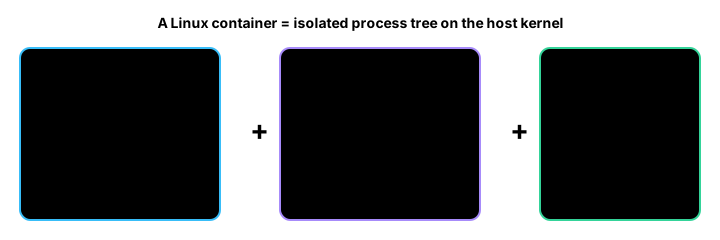
A container is not one kernel feature — it is namespaces (what it can see) plus cgroups (what it can use), started from an OCI image bundle (how it boots):
hello-world$ docker run --rm hello-world
Hello from Docker!This message shows that your installation appears to be working correctly.
To generate this message, Docker took the following steps: 1. The Docker client contacted the Docker daemon. 2. The Docker daemon pulled the "hello-world" image from the Docker Hub. (amd64) 3. The Docker daemon created a new container from that image which runs the executable that produces the output you are currently reading. 4. The Docker daemon streamed that output to the Docker client, which sent it to your terminal.What happened under the hood, step by step:
POST /containers/create request to the Docker daemon over a Unix socket.dockerd asked the registry for the hello-world layers; they were stored in the local content store.containerd called runc, which set up PID, NET, MNT, and UTS namespaces and mounted the overlay rootfs./hello started as PID 1 inside the container, wrote to stdout, and exited.--rm cleanup — because you passed --rm, the container’s writable layer and metadata were removed as soon as PID 1 exited.The UTS namespace gives each container its own hostname. Notice that the hostname inside the container is the short container ID, not your laptop’s hostname:
$ hostnamemy-laptop
$ docker run --rm alpine hostname3f2a1c7b4d9e
The PID namespace means processes inside the container see a fresh numbering starting at 1. Your process tree on the host is invisible to the container:
$ docker run --rm alpine ps auxPID USER TIME COMMAND 1 root 0:00 ps auxOnly ps itself is visible — PID 1 — because that is the only process running in that namespace.
The --cpus and --memory flags write cgroup entries before your process starts. This example
caps a container to half a CPU core and 256 MiB of RAM, then reads what it sees:
$ docker run --rm --cpus="0.5" --memory=256m alpine sh -c 'nproc; free -m'1 total used free shared buff/cache availableMem: 256 4 251 0 0 251Swap: 0 0 0nproc reports 1 — the cgroup CPU quota translates to a single visible processor.free -m shows 256 MiB total — the memory cgroup limit is reflected as the container’s total RAM.0 because --memory without --memory-swap sets both to the same value, leaving no
extra swap headroom.Use docker version to confirm the CLI and server API versions match (critical after upgrades or
switching remote contexts). Use docker info to see the storage driver, cgroup version, default
runtime, and any insecure registries — first stop when “Docker acts weird”:
$ docker versionClient: Docker Engine - Community Version:           26.1.4 API version:       1.45 Go version:        go1.21.11 OS/Arch:           linux/amd64
Server: Docker Engine - Community Engine:  Version:          26.1.4  API version:      1.45 (minimum version 1.24)  Go version:       go1.21.11  OS/Arch:          linux/amd64
$ docker info --format '{{.CgroupVersion}} {{.StorageDriver}}'2 overlay2
CgroupVersion: 2 and StorageDriver: overlay2 is the modern healthy combination on Linux.
| Virtual machine | Linux container | |
|---|---|---|
| Kernel | Guest kernel per VM | Shares host kernel |
| Isolation boundary | Hypervisor + hardware virt | Namespaces + cgroups |
| Boot time | Seconds to minutes | Usually sub-second |
| Size | Large disk images | Slim image layers |
| OS divergence | Any OS guest | Must match host kernel ABI |
Rule of thumb: choose a VM when you need a different kernel (or Windows workloads on Linux); choose a container when you need reproducible userspace without the boot overhead.
| Namespace | Rough effect | Feels like to your app |
|---|---|---|
| PID | Own process IDs | PID 1 can be your server |
| NET | Own network interfaces, routing | Own eth0, own ports |
| MNT | Own mount table | Your / is the image rootfs |
| UTS | Own hostname | hostname inside container |
| IPC | Own SysV IPC / POSIX mq | Less collision with host |
| USER (optional) | UID/GID mapping | ”Root” inside may be unprivileged outside |
| You type | Kernel / runtime effect |
|---|---|
-p 8080:80 | Publish container port 80 on host 8080 (NAT rules on bridge) |
--cpus, --memory | cgroup v2 limits |
--network host | Skip separate NET namespace (share host stack) |
-v /data:/data | Bind mount — host path visible inside mount namespace |
--read-only | Rootfs mounted read-only; writable dirs need tmpfs/volumes |
--rm | Remove container and its writable layer on exit |
--pid host | Share host PID namespace (use with extreme care) |
--rm fills the disk. Every docker run without --rm leaves a stopped
container and its writable layer. docker ps -a lists them; docker container prune removes
stopped ones.CMD is a shell script, signals like SIGTERM may not
reach the actual process. Use exec in the script or the JSON array form (CMD ["node", "server.js"]).dockerd as
root; classic installs run the daemon as root, so container root is a privileged boundary — use
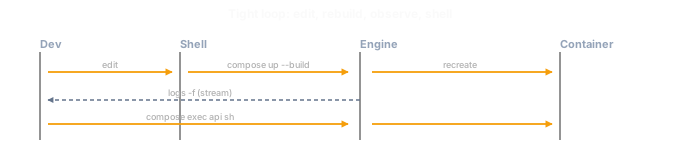
USER in your Dockerfile.Habit to internalise: edit → rebuild → follow logs → shell in — all without guessing container names from raw docker ps output when you use Compose service keys.
docker versionAfter install, upgrades, or CI image bumps — client/server must speak compatible API.
docker infoDebugging storage driver, cgroup version, insecure registries, live restore, swarm.
docker context ls
docker context use NAME
Point CLI at cloud builder, SSH host, or Colima/Lima socket.
| Scenario | Command (example) | When to use |
|---|---|---|
| CLI + engine versions | docker version | After install, upgrades, or CI image bumps — client/server must speak compatible API. |
| Full engine fingerprint | docker info | Debugging storage driver, cgroup version, insecure registries, live restore, swarm. |
| Switch remote / Desktop | docker context ls
docker context use NAME | Point CLI at cloud builder, SSH host, or Colima/Lima socket. |
docker versiondocker infodocker context lsdocker pull nginx:1.27Before run in CI or air-gapped prep.
docker push registry.example.com/team/app:1.2.0After docker tag and docker login.
docker image lsHousekeeping; see dangling <none> (alias: docker images).
docker image rm IMAGEFree disk; fails if containers still reference it.
docker image pruneSafe-ish cleanup; add -a for aggressive (see caution).
docker tag SOURCE:tag TARGET:tagPromote app:sha to app:1.0.0.
docker login
docker logout
Private Docker Hub, ECR, GCR, Harbor.
docker search postgresRough discovery; prefer registry UI for versions.
| Scenario | Command (example) | When to use |
|---|---|---|
| Fetch an image | docker pull nginx:1.27 | Before run in CI or air-gapped prep. |
| Push your tag | docker push registry.example.com/team/app:1.2.0 | After docker tag and docker login. |
| List local images | docker image ls | Housekeeping; see dangling <none> (alias: docker images). |
| Remove one image | docker image rm IMAGE | Free disk; fails if containers still reference it. |
| Remove unused images | docker image prune | Safe-ish cleanup; add -a for aggressive (see caution). |
| Retag for registry | docker tag SOURCE:tag TARGET:tag | Promote app:sha to app:1.0.0. |
| Registry auth | docker login
docker logout | Private Docker Hub, ECR, GCR, Harbor. |
| Search Hub (quick) | docker search postgres | Rough discovery; prefer registry UI for versions. |
docker pull alpine:3.20docker imagesdocker tag myapp:dev myregistry/myapp:1.0.0docker login myregistrydocker push myregistry/myapp:1.0.0docker image prunedocker build -t myapp:dev .Default local build; context = current dir.
docker build --build-arg NODE_VERSION=20 -t myapp .Parameterize ARG in Dockerfile.
docker build --target prod -t myapp:prod .Ship only the runtime stage.
docker build --no-cache -t myapp:clean .Reproduce “fresh” CI-like builds.
docker buildx ls
docker buildx build --platform linux/arm64 -t myapp .
Cross-arch images, remote builders.
docker builder pruneReclaim GB from BuildKit cache.
docker history myapp:devSee which Dockerfile step added size.
docker image inspect myapp:devDigests, env, entrypoint, labels.
| Scenario | Command (example) | When to use |
|---|---|---|
| Build from Dockerfile | docker build -t myapp:dev . | Default local build; context = current dir. |
| Pass build args | docker build --build-arg NODE_VERSION=20 -t myapp . | Parameterize ARG in Dockerfile. |
| Multi-stage target | docker build --target prod -t myapp:prod . | Ship only the runtime stage. |
| Ignore cache | docker build --no-cache -t myapp:clean . | Reproduce “fresh” CI-like builds. |
| BuildKit / builders | docker buildx ls
docker buildx build --platform linux/arm64 -t myapp . | Cross-arch images, remote builders. |
| Trim build cache | docker builder prune | Reclaim GB from BuildKit cache. |
| Layer history | docker history myapp:dev | See which Dockerfile step added size. |
| Inspect image JSON | docker image inspect myapp:dev | Digests, env, entrypoint, labels. |
docker build -t counter-api:dev -f Dockerfile .docker buildx versiondocker history counter-api:dev --no-truncdocker image inspect counter-api:dev --format '{{json .RootFS.Layers}}' | head -c 500docker run --rm -it nginxThrowaway interactive runs: smoke tests, one-off CLIs, or getting a shell. `--rm` removes the container filesystem after exit so names and disk do not accumulate; `-it` allocates a pseudo-TTY and keeps STDIN open so shell-oriented images behave like a normal terminal.
docker run -d --name web -p 8080:80 nginxProcesses that should keep running in the background (web servers, queues, agents). `-d` detaches immediately; `--name` gives a stable handle for `docker logs`/`exec`; `-p host:container` publishes a port on the host so browsers or other apps can reach the service.
docker run -e PORT=3000 myappConfiguration that varies by environment without baking secrets or ports into the image (12-factor style). Use multiple `-e` flags or `--env-file` to load a file of `KEY=value` lines.
docker run --rm ...CI steps, linters, codegen, or any job where you want the container gone as soon as the command finishes. Avoids exited containers piling up and frees the container name immediately.
docker run --restart unless-stopped ...Daemons on Linux hosts or VMs where Docker restarts after reboot. `unless-stopped` restarts the container unless you explicitly stopped it; alternatives include `on-failure` for batch-style workloads.
docker run -w /app -u 1000:1000 myappMatch production security posture in dev: run as a non-root UID/GID (`-u`) and set the process working directory (`-w`) so relative paths and file writes land where the image author expects.
docker run --entrypoint sh -it myappBypass the image default `ENTRYPOINT`/`CMD` (for example to open a shell or run `strace`) without rebuilding. Useful when the app binary crashes on startup and you need to inspect the filesystem first.
docker run --cpus ... --memory ...Cap CPU time and memory on shared laptops or shared CI runners so one container cannot starve others. Combine with `docker stats` to validate limits under load.
docker psDefault inventory of containers in the `running` state: IDs, names, ports, and the command line Docker is tracking.
docker ps -aInclude exited and created containers — use this when a `docker run` fails with “name already in use” or when cleaning up failed one-off runs.
docker start NAME
docker stop NAME
Reuse an existing container with the same filesystem layer and configuration instead of `docker run` again. `stop` sends SIGTERM then SIGKILL after a grace period (configurable with `-t`).
docker kill NAMEImmediate termination when `stop` is too slow or the process ignores SIGTERM. Optionally pass a different signal (for example `docker kill -s HUP`).
docker rm NAMEDelete a stopped container record to free the name and metadata. `docker rm -f` force-removes a running container (SIGKILL then remove).
docker container pruneBatch-delete all stopped containers after heavy local experimentation; review the prompt carefully on shared machines.
| Scenario | Command (example) | When to use |
|---|---|---|
| Foreground run | docker run --rm -it nginx | Throwaway interactive runs: smoke tests, one-off CLIs, or getting a shell. `--rm` removes the container filesystem after exit so names and disk do not accumulate; `-it` allocates a pseudo-TTY and keeps STDIN open so shell-oriented images behave like a normal terminal. |
| Detached server | docker run -d --name web -p 8080:80 nginx | Processes that should keep running in the background (web servers, queues, agents). `-d` detaches immediately; `--name` gives a stable handle for `docker logs`/`exec`; `-p host:container` publishes a port on the host so browsers or other apps can reach the service. |
| Env vars | docker run -e PORT=3000 myapp | Configuration that varies by environment without baking secrets or ports into the image (12-factor style). Use multiple `-e` flags or `--env-file` to load a file of `KEY=value` lines. |
| Auto-remove | docker run --rm ... | CI steps, linters, codegen, or any job where you want the container gone as soon as the command finishes. Avoids exited containers piling up and frees the container name immediately. |
| Restart policy | docker run --restart unless-stopped ... | Daemons on Linux hosts or VMs where Docker restarts after reboot. `unless-stopped` restarts the container unless you explicitly stopped it; alternatives include `on-failure` for batch-style workloads. |
| Workdir / user | docker run -w /app -u 1000:1000 myapp | Match production security posture in dev: run as a non-root UID/GID (`-u`) and set the process working directory (`-w`) so relative paths and file writes land where the image author expects. |
| Override entrypoint | docker run --entrypoint sh -it myapp | Bypass the image default `ENTRYPOINT`/`CMD` (for example to open a shell or run `strace`) without rebuilding. Useful when the app binary crashes on startup and you need to inspect the filesystem first. |
| Resource limits | docker run --cpus ... --memory ... | Cap CPU time and memory on shared laptops or shared CI runners so one container cannot starve others. Combine with `docker stats` to validate limits under load. |
| List running | docker ps | Default inventory of containers in the `running` state: IDs, names, ports, and the command line Docker is tracking. |
| List all | docker ps -a | Include exited and created containers — use this when a `docker run` fails with “name already in use” or when cleaning up failed one-off runs. |
| Start / stop | docker start NAME
docker stop NAME | Reuse an existing container with the same filesystem layer and configuration instead of `docker run` again. `stop` sends SIGTERM then SIGKILL after a grace period (configurable with `-t`). |
| Hard kill | docker kill NAME | Immediate termination when `stop` is too slow or the process ignores SIGTERM. Optionally pass a different signal (for example `docker kill -s HUP`). |
| Remove container | docker rm NAME | Delete a stopped container record to free the name and metadata. `docker rm -f` force-removes a running container (SIGKILL then remove). |
| Bulk remove stopped | docker container prune | Batch-delete all stopped containers after heavy local experimentation; review the prompt carefully on shared machines. |
docker run -d --name counter-api -p 3000:3000 --restart unless-stopped counter-api:devdocker psdocker stop counter-api && docker rm counter-apidocker logs -f counter-apiSee stdout/stderr like tail -f.
docker logs --tail 100 counter-apiLarge logs without flooding terminal.
docker logs --since 2026-01-01T12:00:00 counter-apiIncident windows.
docker attach counter-apiCare: Ctrl+C may go to process; prefer exec for shells.
docker exec -it counter-api shLive debugging, curl localhost, printenv.
docker exec counter-api wget -qO- http://127.0.0.1:3000/healthSmoke tests from same network ns.
docker inspect counter-apiIP, mounts, state, host paths.
docker inspect -f '{{range.NetworkSettings.Networks}}{{.IPAddress}}{{end}}' counter-apiScripting.
docker top counter-apiLike ps on host for container PIDs.
docker statsCPU/mem streams for all running containers.
docker events --since 1hCorrelate restarts with deploys.
docker cp counter-api:/app/logs.txt .
docker cp ./local.conf counter-api:/tmp/
Grab cores, configs, heap dumps.
| Scenario | Command (example) | When to use |
|---|---|---|
| Stream logs | docker logs -f counter-api | See stdout/stderr like tail -f. |
| Last N lines | docker logs --tail 100 counter-api | Large logs without flooding terminal. |
| Since timestamp | docker logs --since 2026-01-01T12:00:00 counter-api | Incident windows. |
| Attach to PID1 TTY | docker attach counter-api | Care: Ctrl+C may go to process; prefer exec for shells. |
| Shell inside | docker exec -it counter-api sh | Live debugging, curl localhost, printenv. |
| One-off command | docker exec counter-api wget -qO- http://127.0.0.1:3000/health | Smoke tests from same network ns. |
| JSON metadata | docker inspect counter-api | IP, mounts, state, host paths. |
| JSONPath | docker inspect -f '{{range.NetworkSettings.Networks}}{{.IPAddress}}{{end}}' counter-api | Scripting. |
| Live processes | docker top counter-api | Like ps on host for container PIDs. |
| Live stats | docker stats | CPU/mem streams for all running containers. |
| Event stream | docker events --since 1h | Correlate restarts with deploys. |
| Copy files | docker cp counter-api:/app/logs.txt .
docker cp ./local.conf counter-api:/tmp/ | Grab cores, configs, heap dumps. |
docker logs -f --tail 50 counter-apidocker exec -it counter-api shdocker inspect counter-api --format '{{.State.Health.Status}}'docker network lsSee bridge/host/custom.
docker network create app-netUser-defined bridge for DNS between containers.
docker network inspect app-netContainers attached, subnets, gateways.
docker network pruneAfter compose experiments.
docker volume lsNamed volumes for databases.
docker volume create pgdataPre-create with labels or drivers.
docker volume inspect pgdataMountpoint on Linux host disk.
| Scenario | Command (example) | When to use |
|---|---|---|
| List networks | docker network ls | See bridge/host/custom. |
| Create network | docker network create app-net | User-defined bridge for DNS between containers. |
| Inspect network | docker network inspect app-net | Containers attached, subnets, gateways. |
| Remove unused nets | docker network prune | After compose experiments. |
| List volumes | docker volume ls | Named volumes for databases. |
| Create volume | docker volume create pgdata | Pre-create with labels or drivers. |
| Inspect volume | docker volume inspect pgdata | Mountpoint on Linux host disk. |
docker network create counter-netdocker volume create counter-pgdatadocker system dfSee images vs build cache vs containers.
docker system pruneRemove stopped containers + dangling nets + build cache (layers still used stay).
docker system prune -a --volumesDestructive — removes unused images and unused volumes.
| Scenario | Command (example) | When to use |
|---|---|---|
| Disk usage breakdown | docker system df | See images vs build cache vs containers. |
| Safe cleanup | docker system prune | Remove stopped containers + dangling nets + build cache (layers still used stay). |
| Aggressive cleanup | docker system prune -a --volumes | Destructive — removes unused images and unused volumes. |
docker compose up -dFrom directory with compose.yaml.
docker compose up -d --buildAfter Dockerfile changes.
docker compose downStop and remove containers + default network.
docker compose down -vReset Postgres data in dev.
docker compose psWhich container is healthy.
docker compose logs -f apiPer-service follow.
docker compose exec api shSame as docker exec but with service name.
docker compose pullRefresh pinned tags before CI.
docker compose buildWarm cache before up.
| Scenario | Command (example) | When to use |
|---|---|---|
| Start stack | docker compose up -d | From directory with compose.yaml. |
| Rebuild images | docker compose up -d --build | After Dockerfile changes. |
| Tear down | docker compose down | Stop and remove containers + default network. |
| Remove volumes too | docker compose down -v | Reset Postgres data in dev. |
| Service status | docker compose ps | Which container is healthy. |
| Logs | docker compose logs -f api | Per-service follow. |
| Shell in service | docker compose exec api sh | Same as docker exec but with service name. |
| Pull bases | docker compose pull | Refresh pinned tags before CI. |
| Build only | docker compose build | Warm cache before up. |
See the full counter-api stack: Docker Compose.
docker save -o myapp.tar myapp:1.0Move image without registry.
docker load -i myapp.tarImport on target host.
docker export CONTAINER > rootfs.tarRare — loses history/metadata; prefer save.
docker import rootfs.tar myimg:rawGolden images / odd pipelines.
| Scenario | Command (example) | When to use |
|---|---|---|
| Save image tarball | docker save -o myapp.tar myapp:1.0 | Move image without registry. |
| Load tarball | docker load -i myapp.tar | Import on target host. |
| Export filesystem | docker export CONTAINER > rootfs.tar | Rare — loses history/metadata; prefer save. |
| Import tarball as image | docker import rootfs.tar myimg:raw | Golden images / odd pipelines. |
docker scout quickview myapp:latestIf Docker Scout enabled — quick CVE overview.
| Scenario | Command (example) | When to use |
|---|---|---|
| Image insights | docker scout quickview myapp:latest | If Docker Scout enabled — quick CVE overview. |
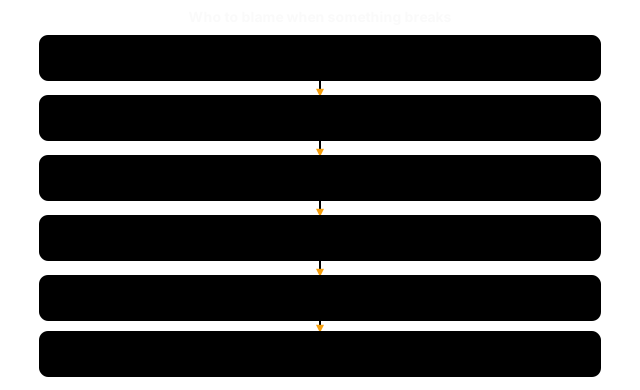
When a container “hangs on start,” pulls the wrong digest, or survives a daemon restart, you need a request path mental model — not more flags guessed at random.
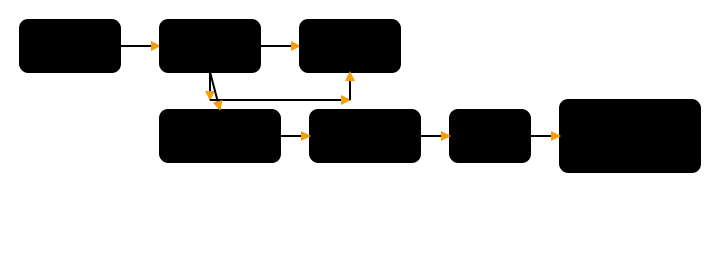
The stack shows the flow; the diagram below shows who owns what when you need to point at a subsystem:

docker run happy path — order of operations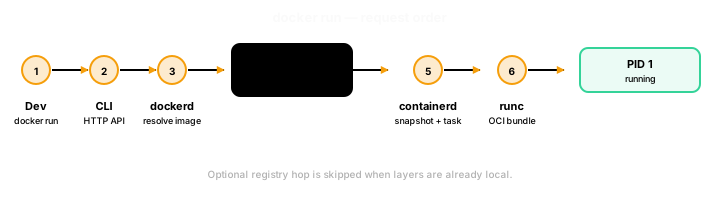
Step by step:
dockerd — the CLI sends an HTTP request over the Unix socket
(/var/run/docker.sock on Linux). Payload includes image reference, cmd/entrypoint, mounts,
port bindings, env, cgroup limits, and network mode.dockerd resolves the image — if missing locally, the pull flow talks to the registry
(manifests, layer blobs) and stores content through containerd’s content store.overlay2
on Linux). That snapshot becomes the container’s root filesystem view.runc expects a directory (a bundle) with config.json (OCI runtime spec)
and rootfs/. The shim and containerd prepare that bundle from image config + mounts.containerd-shim — one shim process per container so runc can exit after spawning the
workload while stdio streaming and exit codes remain available.runc — applies namespaces and cgroups, pivots into rootfs, execs PID 1
(your CMD/ENTRYPOINT).Trace a real docker run from command to running process, then inspect every layer to confirm each
hand-off happened correctly.
$ docker run -d --name counter-api -p 3000:3000 counter-api:deva7f3e2c1d84b9051e6c2a0f9b3d4e7c8f1a2b5d6e9f0c3a4b7d8e1f2a3b6c9d0In a second terminal, observe the lifecycle events that dockerd emitted:
$ docker events --since 1m --filter container=counter-api2024-05-15T09:14:02.110381Z container pull counter-api:dev (image=counter-api:dev)2024-05-15T09:14:02.391724Z container create counter-api (image=counter-api:dev, name=counter-api)2024-05-15T09:14:02.447891Z network connect app-net (container=counter-api, name=app-net)2024-05-15T09:14:02.513042Z container start counter-api (image=counter-api:dev, name=counter-api)Interpretation: create (step 4 — OCI bundle built) fires before start (step 6 — runc
execs PID 1). If you see create without start, the failure is in shim / runc, not in your
application code.
$ docker ps --format '{{.Names}}\t{{.Status}}\t{{.Ports}}'counter-api Up 8 seconds 0.0.0.0:3000->3000/tcp$ docker inspect --format \ '{{.HostConfig.Runtime}} | PID={{.State.Pid}} | Status={{.State.Status}}' \ counter-apirunc | PID=84732 | Status=runningRuntime=runc confirms the OCI runtime that executed this container (could be runsc, kata
for alternative runtimes you’ve registered with dockerd).PID=84732 is the host-level PID of the shim process holding the container’s stdio; PID 1
inside the container is the process the shim launched via runc.Status=running means containerd’s task state is live.$ ps aux | grep containerd-shim | grep counter-apiroot 84729 0.0 0.0 containerd-shim-runc-v2 -namespace moby -id a7f3e2c1d84b...One containerd-shim-runc-v2 per container — exactly what the mental model predicts. This process
outlives runc (which exits immediately after spawning PID 1) and survives a dockerd restart
when live-restore is enabled.
$ curl -s localhost:3000/health{"status":"ok","count":0}# Which Docker context am I talking to? (avoid accidentally hitting prod)docker context show
# Deep config: default bridge CIDR, cgroup driver, registered runtimesdocker info --format '{{json .Runtimes}}'
# Live events stream — filter by image or container namedocker events --since 5m --filter image=counter-api:dev
# Full JSON config of a container (runtime, mounts, cgroup limits, state)docker inspect counter-api
# Runtime and PID in one linedocker inspect --format \ '{{.HostConfig.Runtime}} | PID={{.State.Pid}} | Status={{.State.Status}}' \ counter-api
# Linux: follow daemon logsjournalctl -u docker.service -fImage builds (docker build) are handled by BuildKit, even when you use the classic command.
BuildKit resolves Dockerfile instructions into a DAG, pulls base layers, runs build steps in
ephemeral containers or LLB workers, then exports a new image manifest into containerd’s content
store.
docker buildx version # confirm BuildKit is activedocker buildx ls # see builders: default docker driver vs. remote Kubernetes builderAn OCI bundle is a folder on disk: config.json (OCI runtime spec) plus a rootfs/ tree.
runc run reads that folder, applies isolation (namespaces, cgroups, seccomp), and replaces itself
with your program as PID 1. You rarely touch bundles manually — but docker inspect output is the
same information surfaced as JSON for the higher-level Docker object.
| Component | Owned by | Fails when… |
|---|---|---|
docker CLI | Docker, Inc. | socket path wrong, wrong context |
dockerd | Docker, Inc. | image not found, port conflict, daemon crash |
containerd | CNCF / Docker | snapshot corruption, content store full |
containerd-shim | CNCF / Docker | stdio leaks, zombie on restart |
runc | OCI | namespace/cgroup limits, seccomp policy, rootfs missing |
docker run hangs at “create” but never reaches “start” — the OCI bundle preparation failed.
Look for docker events showing create but no start, then check journalctl -u docker.service
for runc: container_linux.go errors (often a seccomp or capability issue).
Container survives systemctl restart docker unexpectedly — live-restore is on
("live-restore": true in /etc/docker/daemon.json). The shim holds the container alive
independently of dockerd. Intentional, but surprising the first time.
runc runtime error: operation not permitted — a cgroup v2 host with a container that
targets v1-only paths. Check docker info | grep 'Cgroup Version' and update the container’s
cgroup configuration.
Multiple containerd-shim processes per container — you probably restarted dockerd without
live-restore enabled and then started a new container. Orphaned shims: docker system prune
won’t remove them; find and kill stale shims with ps aux | grep containerd-shim.
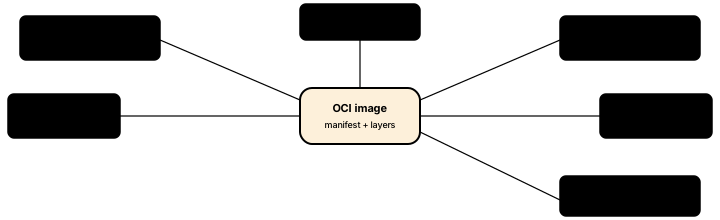
You need reproducible deploys: the same bytes in CI, staging, and prod — without copying a 20 GB VM each time. And you want pulls to be fast: if two images share a base layer, that layer should only ever be downloaded and stored once.
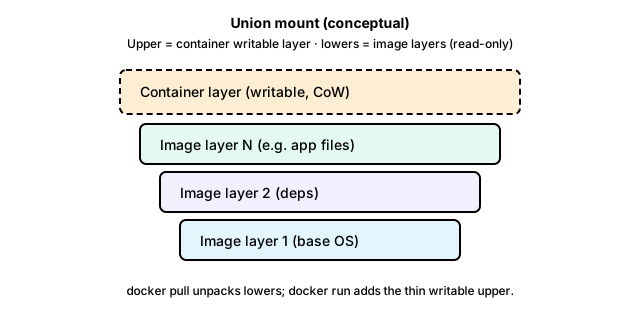
$ docker pull redis:7.2-alpine7.2-alpine: Pulling from library/redis579b34f0a95b: Pull completed3e1b2ad34f4: Pull completea3e53f9cbee4: Pull completea5e7d5ff7cbe: Pull completeDigest: sha256:3d9f5b4c6a2e1d8b0c7f3a1e2d6b9c4f7a0e3d8b2c5f1a4e7d0b3c6f9a2e5d8b1Status: Downloaded newer image for redis:7.2-alpinedocker.io/library/redis:7.2-alpineEach Pull complete line is one layer blob being downloaded and verified by its sha256. The final Digest: is the manifest hash — the same manifest hash on any registry node or any machine worldwide.
$ docker history redis:7.2-alpine --human --no-truncIMAGE CREATED CREATED BY SIZE COMMENTsha256:3d9f5b4c6a2e1d8b0c7f3a1e2d6b9c4f7a0e3d8b2c5f1a4e7d0b3c6f9a2e5d8 2 weeks ago CMD ["redis-server"] 0B buildkit.dockerfile.v0<missing> 2 weeks ago EXPOSE map[6379/tcp:{}] 0B buildkit.dockerfile.v0<missing> 2 weeks ago RUN /bin/sh -c set -eux; savedAptMark="$(apt-mark showmanual)"… 31.2MB buildkit.dockerfile.v0<missing> 2 weeks ago ENV REDIS_VERSION=7.2.4 REDIS_DOWNLOAD_URL=http://download.redis.io/… 0B buildkit.dockerfile.v0<missing> 2 weeks ago RUN /bin/sh -c addgroup -S redis && adduser -S -G redis redis 4.72kB buildkit.dockerfile.v0<missing> 2 weeks ago FROM alpine:3.19 7.34MBThe 0B rows are metadata-only instructions (CMD, EXPOSE, ENV) — they cost nothing on disk. The large RUN layer (31.2 MB) compiles and installs Redis. The FROM alpine:3.19 row is the base layer: 7.34 MB.
Now pull alpine:3.19 directly and watch what happens:
$ docker pull alpine:3.193.19: Pulling from library/alpine579b34f0a95b: Already existsDigest: sha256:13b7e62e8df80264dbb747995705a986aa530415763a6c58f84a3ca8af9a5bcdStatus: Downloaded newer image for alpine:3.19docker.io/library/alpine:3.19579b34f0a95b: Already exists — Docker’s content-addressable store recognised the blob hash and skipped the download entirely. That layer (Alpine’s root filesystem) is stored once on disk and mounted read-only by both redis:7.2-alpine and alpine:3.19. Every image that derives from alpine:3.19 gets the same deduplication for free.
$ docker image inspect redis:7.2-alpine --format '{{.RepoDigests}}'[docker.io/library/redis@sha256:3d9f5b4c6a2e1d8b0c7f3a1e2d6b9c4f7a0e3d8b2c5f1a4e7d0b3c6f9a2e5d8b1]
$ docker image inspect alpine:3.19 --format '{{.RepoDigests}}'[docker.io/library/alpine@sha256:13b7e62e8df80264dbb747995705a986aa530415763a6c58f84a3ca8af9a5bcd]
RepoDigests is the manifest digest — the thing you should pin in a Dockerfile or Kubernetes manifest for production.
$ docker tag redis:7.2-alpine myregistry.io/cache/redis:7.2-alpine$ docker login myregistry.io$ docker push myregistry.io/cache/redis:7.2-alpineThe push refers to repository [myregistry.io/cache/redis]579b34f0a95b: Layer already existsd3e1b2ad34f4: Pusheda3e53f9cbee4: Pusheda5e7d5ff7cbe: Pushed7.2-alpine: digest: sha256:3d9f5b4c6a2e1d8b0c7f3a1e2d6b9c4f7a0e3d8b2c5f1a4e7d0b3c6f9a2e5d8b1 size: 1165Layer already exists appears for any layer the registry has already seen — the same dedup logic applies on the server side. docker tag never copies bytes; it just creates a new pointer in local metadata.
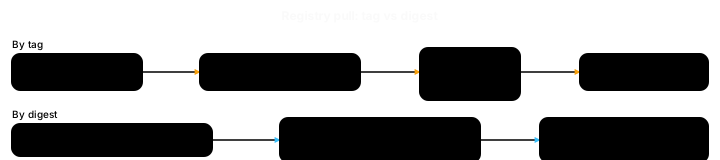
A tag is a mutable pointer — the registry can reassign :latest at any time. A digest is immutable — if the bytes change, the hash changes. Production environments should always pull by digest.
| Command | What it does |
|---|---|
docker pull IMAGE[:TAG] | Download image from registry |
docker pull IMAGE@sha256:… | Pull exact immutable manifest |
docker images [REPO] | List local images |
docker tag SOURCE TARGET | Create a new tag alias (no copy) |
docker push IMAGE | Upload layers to registry |
docker image inspect IMAGE | Full JSON metadata (env, ports, digests) |
docker history IMAGE [--no-trunc] | Per-layer size and origin instruction |
docker image rm IMAGE | Remove image from local store |
docker image ls -f dangling=true | List untagged <none> layers |
docker image prune | Remove dangling layers |
docker save -o FILE.tar IMAGE | Export image to tarball |
docker load -i FILE.tar | Import image from tarball |
docker search TERM | Search Docker Hub |
docker login REGISTRY | Authenticate to a registry |
| Concept | Mutable? | When to use |
|---|---|---|
Tag (:7.2-alpine) | Yes — can be reassigned | Human releases, local dev, convenience |
Digest (@sha256:…) | No — content-addressed | Dockerfile FROM, Kubernetes pod specs, SBOM pinning |
Pin with digest in production:
docker pull alpine@sha256:4bcff63911fcb4448bd4fdacec03ce985c43f7af5a99552d4d0d0e3e2730a027.dockerignore (build context hygiene)The build context is a tarball sent to the daemon on every docker build. Without ignore rules you upload node_modules, .git, and secrets — slowing every build and potentially leaking credentials.
Example for a Node counter-api/ project:
node_modulesnpm-debug.log.git.env.env.*distcoverageMirror your .gitignore plus any secret filenames specific to your stack.
docker save -o counter-api.tar counter-api:1.0.0docker load -i counter-api.tarUse for air-gapped transfers, demo laptops, or CI artifact hand-offs where a registry is unavailable.
:latest on Docker Hub can change under you overnight. If your CI pulls :latest on every build, you may get a different image tomorrow. Pin with @sha256: for reproducibility.docker tag does not copy bytes. It creates a new local metadata pointer to the same manifest. The layers are unchanged — both the old and new name share the exact same blobs.docker history rows may not map 1:1 to Dockerfile lines. Multi-stage builds, --squash, and BuildKit cache exports can merge or split layers. Use it for size triage, not audit.<none>:<none> images are intermediate layers orphaned when you rebuild with the same tag. They waste space but are harmless — prune them with docker image prune (without -a).@sha256: for a lockfile.You want a small, fast-to-pull image that still has all compilers and test tools during build — without shipping them to production. And you want rebuilds to take seconds, not minutes, because unchanged layers come from cache.
Each FROM starts a fresh stage. Later stages COPY --from only the artifacts they need, so build-time tooling never reaches the runtime image:

BuildKit hashes every instruction and its inputs. A cache hit reuses the stored layer; a cache bust forces that layer — and every layer after it — to re-execute. This is why you order instructions from least frequently changing to most frequently changing:
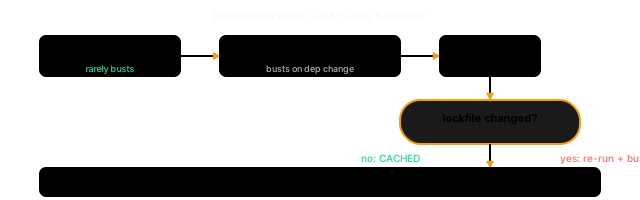
Editing a single source file only busts the COPY src/ layer and below — the expensive npm ci step stays cached because package-lock.json did not change.
Starting from counter-api/ with the Dockerfile below (full listing in Reference):
$ docker build -t counter-api:dev .[+] Building 18.4s (14/14) FINISHED => [internal] load build definition from Dockerfile 0.0s => [internal] load .dockerignore 0.0s => [internal] load metadata for docker.io/library/node:20-bookworm 1.2s => [internal] load metadata for docker.io/library/node:20-bookworm-slim 1.1s => [deps 1/3] FROM node:20-bookworm@sha256:... 3.8s => [deps 2/3] COPY package.json package-lock.json ./ 0.1s => [deps 3/3] RUN npm ci 9.2s => [build 1/3] COPY --from=deps /app/node_modules ./node_modules 0.4s => [build 2/3] COPY . . 0.1s => [build 3/3] RUN npm run build 1.8s => [prod 1/3] FROM node:20-bookworm-slim@sha256:... 2.1s => [prod 2/3] COPY --from=build /app/dist ./dist 0.1s => [prod 3/3] COPY package.json ./ 0.0s => exporting to image 0.4s => => exporting layers 0.3s => => writing image sha256:4a2b9c1d... 0.0s => => naming to docker.io/library/counter-api:dev 0.0sWhat happened: BuildKit resolved both base images in parallel (node:20-bookworm for deps/build, node:20-bookworm-slim for prod), ran npm ci (the slowest step), compiled the source, then assembled the slim runtime image. Total: 18 s on a cold cache.
Edit src/index.js (a single-line change), then rebuild:
$ docker build -t counter-api:dev .[+] Building 2.9s (14/14) FINISHED => [internal] load build definition from Dockerfile 0.0s => [internal] load .dockerignore 0.0s => [internal] load metadata for docker.io/library/node:20-bookworm 0.8s => [internal] load metadata for docker.io/library/node:20-bookworm-slim 0.7s => CACHED [deps 1/3] FROM node:20-bookworm@sha256:... 0.0s => CACHED [deps 2/3] COPY package.json package-lock.json ./ 0.0s => CACHED [deps 3/3] RUN npm ci 0.0s => CACHED [build 1/3] COPY --from=deps /app/node_modules ./node_modules 0.0s => [build 2/3] COPY . . 0.1s => [build 3/3] RUN npm run build 1.8s => CACHED [prod 1/3] FROM node:20-bookworm-slim@sha256:... 0.0s => [prod 2/3] COPY --from=build /app/dist ./dist 0.1s => [prod 3/3] COPY package.json ./ 0.0s => exporting to image 0.2s => => exporting layers 0.1s => => writing image sha256:7f3c0e2a... 0.0s => => naming to docker.io/library/counter-api:dev 0.0sCache behavior: package.json and package-lock.json did not change, so the npm ci step (deps 3/3) is CACHED — the 9 s install is skipped entirely. Only COPY . . (which picks up the edited file), npm run build, and the two prod-stage copy steps re-run. Rebuild took 2.9 s instead of 18 s.
$ docker history counter-api:devIMAGE CREATED CREATED BY SIZE7f3c0e2a1b4c 2 seconds ago CMD ["node" "dist/index.js"] 0B<missing> 2 seconds ago HEALTHCHECK --interval=10s --timeout=3s ... 0B<missing> 2 seconds ago EXPOSE 3000 0B<missing> 2 seconds ago COPY package.json ./ # buildkit 1.23kB<missing> 2 seconds ago COPY /app/dist ./dist # buildkit 45.2kB<missing> 2 seconds ago USER node 0B<missing> 2 seconds ago ENV NODE_ENV=production 0B<missing> 2 seconds ago WORKDIR /app 0B<missing> 3 minutes ago /bin/sh -c #(nop) CMD ["node"] 0B... ... node:20-bookworm-slim base layers 74.4MBThe final image is ~75 MB. The node_modules from the deps stage and all build tools from node:20-bookworm are absent — they existed only in intermediate stages that BuildKit discarded.
counter-api/Dockerfile# --- deps stage: install all deps from lockfile ---FROM node:20-bookworm AS depsWORKDIR /appCOPY package.json package-lock.json ./RUN npm ci
# --- build stage: compile / bundle ---FROM node:20-bookworm AS buildWORKDIR /appCOPY --from=deps /app/node_modules ./node_modulesCOPY . .RUN npm run build
# --- prod stage: slim runtime image ---FROM node:20-bookworm-slim AS prodWORKDIR /appENV NODE_ENV=productionUSER nodeCOPY --from=build /app/dist ./distCOPY package.json ./RUN npm install --omit=devEXPOSE 3000HEALTHCHECK --interval=10s --timeout=3s CMD node -e "require('http').get('http://127.0.0.1:3000/health',r=>process.exit(r.statusCode===200?0:1))"CMD ["node", "dist/index.js"]RUN --mount=type=cache,target=/root/.npm \ npm ciUse this when the cache directory should persist across builds but must not land in an image layer. Works for npm, pip, go mod download, Maven, and Gradle. The mount is private to the builder — it never appears in docker history.
docker build commands| Command | When you use it |
|---|---|
docker build -t counter-api:dev . | Default BuildKit build, tags the result |
docker build -t counter-api:1.0.0 --target prod . | Build only up to a named stage; useful for iterating on the build stage while keeping deps cached |
docker build --build-arg HTTP_PROXY=$HTTP_PROXY -t counter-api:ci . | Forward proxy or version info at build time |
docker build --no-cache -t counter-api:clean . | Reproduce “fresh machine” failures (missing ARG, flaky network) |
docker history counter-api:dev | Inspect layer sizes and commands |
docker buildx commands (cross-arch and remote builders)# Create a builder that supports multi-platform buildsdocker buildx create --name remote --driver docker-containerdocker buildx use remote
# Build for two architectures and push to a registrydocker buildx build --platform linux/amd64,linux/arm64 \ -t myuser/counter-api:1.0.0 --push .
# Reclaim disk after heavy buildx experimentationdocker builder pruneUse --platform linux/amd64,linux/arm64 when developing on Apple Silicon and deploying to x86-64 servers, or when publishing public multi-arch images.
Common failure modes:
npm ci re-runs on every build even when nothing changed. Check that COPY package.json package-lock.json ./ appears before RUN npm ci, and that you are not running COPY . . before it. Any file that changes busts the layer.--target stops before the expected stage. Stage names are case-sensitive in the FROM ... AS <name> line. COPY --from=Build fails if the stage is declared AS build.CACHED layers from a previous image tag disappear on CI. By default, CI runners start with empty caches. Pass --cache-from type=registry,ref=myuser/counter-api:buildcache and --cache-to type=registry,ref=myuser/counter-api:buildcache,mode=max to persist the BuildKit cache in your registry.docker build ignores .dockerignore. A missing or wrong .dockerignore lets node_modules/, .git/, and large test fixtures into the build context, slowing the COPY . . step and sometimes busting cache unexpectedly. Always exclude build artifacts and dev-only directories.Your container starts but returns 502s, exits with code 137, or works on your laptop and fails in CI — you need fast feedback loops without rebuilding images blindly.
Know which state your container is in before picking a remedy. docker start only works from Stopped; docker rm -f is the nuclear option from any state.
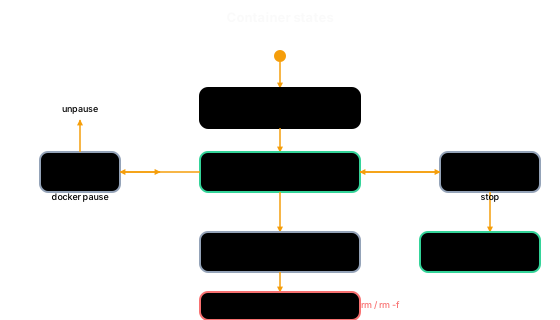
Five categories cover almost every runtime problem:

Use this flow when a container is misbehaving and you do not know where to start:
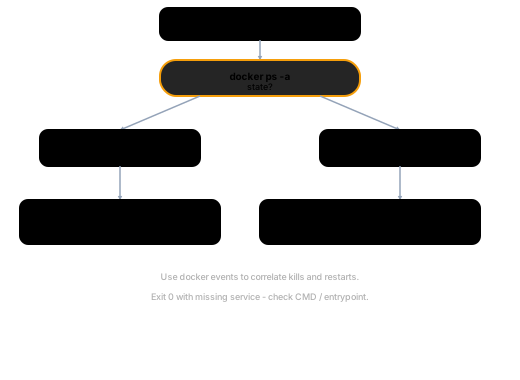
counter-api is crash-looping with exit 137You come back to find the container gone. Walk through the full investigation below.
$ docker ps -a --filter name=counter-apiCONTAINER ID IMAGE COMMAND CREATED STATUS PORTS NAMESa3f9c1e72b4d counter-api:dev "node src/index.js" 4 minutes ago Exited (137) 2 minutes ago counter-apiExit 137 = 128 + signal 9 (SIGKILL). The process did not exit cleanly — something killed it. The two most common causes are OOM and an explicit docker kill.
$ docker inspect --format '{{.State.ExitCode}} {{.State.OOMKilled}}' counter-api137 trueOOMKilled: true confirms the Linux kernel’s OOM killer sent SIGKILL because the container exceeded its memory limit (or the host ran out of memory).
$ docker logs --tail 30 counter-api[server] Listening on :3000[server] GET /count 200 4ms[server] GET /increment 200 6ms[server] GET /increment 200 5ms[server] GET /count 200 4ms[server] Memory in use: 142 MB[server] Memory in use: 198 MB[server] Memory in use: 247 MB[server] Memory in use: 303 MBThe log shows memory climbing steeply with no corresponding error — the container simply disappeared mid-output when the kernel killed it. There is no graceful shutdown message.
$ docker events --filter container=counter-api --since 10m2026-05-14T09:12:03.441Z container start a3f9c1e72b4d (image=counter-api:dev, name=counter-api)2026-05-14T09:15:58.017Z container oom a3f9c1e72b4d (image=counter-api:dev, name=counter-api)2026-05-14T09:15:58.024Z container die a3f9c1e72b4d (image=counter-api:dev, name=counter-api, exitCode=137)The oom event appears six milliseconds before die — the event stream tells the story chronologically. No guesswork needed.
$ docker inspect --format '{{.HostConfig.Memory}}' counter-api00 means no limit was set — the container was allowed to use all host memory until the kernel ran out and killed it. This is the most dangerous configuration for memory-leaking apps.
$ docker rm counter-api$ docker run -d --name counter-api \    -p 3000:3000 \    --memory 256m \    --memory-swap 256m \    counter-api:dev
$ docker stats --no-stream counter-apiCONTAINER ID   NAME          CPU %   MEM USAGE / LIMIT   MEM %   NET I/O       BLOCK I/Oa9b2c3d4e5f6   counter-api   0.4%    41.3MiB / 256MiB    16.1%   648B / 0B     0B / 0B
--memory-swap 256m (equal to --memory) disables swap for this container, so future OOMs are deterministic and fast rather than causing host thrash.
$ curl -s localhost:3000/health{"status":"ok","count":0}docker psRunning containers and published ports.
docker ps -aAll containers including exited.
docker ps --filter status=exitedOnly stopped containers.
docker logs counter-apiAll stdout and stderr so far.
docker logs -f --tail 100 counter-apiLive tail, last 100 lines.
docker logs --since 10m counter-apiLast ten minutes of logs.
docker stats counter-apiLive CPU, memory, net, block I/O.
docker stats --no-stream counter-apiSingle stats sample.
docker top counter-apiProcess table inside the container.
docker events --filter container=counter-apiLifecycle event stream.
| Scenario | Command (example) | When to use |
|---|---|---|
| Quick sanity check | docker ps | Running containers and published ports. |
| Find crash-looped containers | docker ps -a | All containers including exited. |
| Bulk cleanup investigation | docker ps --filter status=exited | Only stopped containers. |
| First stop for any failure | docker logs counter-api | All stdout and stderr so far. |
| Incident watching | docker logs -f --tail 100 counter-api | Live tail, last 100 lines. |
| Narrow a time window | docker logs --since 10m counter-api | Last ten minutes of logs. |
| Spot resource pressure | docker stats counter-api | Live CPU, memory, net, block I/O. |
| Script-friendly snapshot | docker stats --no-stream counter-api | Single stats sample. |
| See child processes | docker top counter-api | Process table inside the container. |
| Correlate crash timeline | docker events --filter container=counter-api | Lifecycle event stream. |
Under the hood: Docker aggregates container stdio from the container shim. The default json-file log driver writes rotating JSON files on the host — check docker inspect --format '{{.LogPath}}' counter-api when host disk fills.
docker inspect returns the full object as JSON. The --format flag accepts Go template syntax for targeted, script-friendly output.
{{.State.ExitCode}} {{.State.OOMKilled}}Pair exit code with OOM flag.
{{.State.Status}}running / exited / paused.
{{json .NetworkSettings.Ports}}Structured port bindings.
{{.LogPath}}Host path when disk fills.
{{.HostConfig.Memory}}0 means unlimited.
{{.HostConfig.RestartPolicy.Name}}no / always / on-failure.
| Scenario | Command (example) | When to use |
|---|---|---|
| Crash diagnosis | {{.State.ExitCode}} {{.State.OOMKilled}} | Pair exit code with OOM flag. |
| Process state | {{.State.Status}} | running / exited / paused. |
| Published port mappings | {{json .NetworkSettings.Ports}} | Structured port bindings. |
| json-file log path | {{.LogPath}} | Host path when disk fills. |
| Memory limit (bytes) | {{.HostConfig.Memory}} | 0 means unlimited. |
| Restart policy name | {{.HostConfig.RestartPolicy.Name}} | no / always / on-failure. |
# Examplesdocker inspect counter-apidocker inspect --format '{{.State.ExitCode}} {{.State.OOMKilled}}' counter-apidocker inspect --format '{{json .NetworkSettings.Ports}}' counter-apidocker inspect --format '{{.LogPath}}' counter-apidocker inspect --format '{{.HostConfig.Memory}}' counter-apidocker exec -it counter-api shdocker exec counter-api printenv NODE_ENVdocker exec counter-api node -e "require('http').get('http://127.0.0.1:3000/health',r=>console.log(r.statusCode))"docker exec joins the container’s existing namespaces — you see the same filesystem and network as PID 1, but you are a separate process. Use it for interactive shells, one-off smoke tests, and grabbing ps output from inside the container’s view.
# Pull a file from the container to the hostdocker cp counter-api:/app/package.json ./package.json.from-container
# Push a file from the host into the containerdocker cp ./local-config.json counter-api:/tmp/local-config.json
Use docker cp for core dumps, heap snapshots, and config files — without SSH into the host.
docker stop counter-apiSIGTERM, then SIGKILL after grace — let the app clean up.
docker start counter-apiSame container config as before.
docker restart counter-apiStop then start during debugging.
docker kill counter-apiSIGKILL immediately.
docker kill --signal HUP counter-apinginx-style SIGHUP reload.
docker rm counter-apiAfter stop.
docker rm -f counter-apiOne step for a running container.
docker container pruneRemoves every stopped container.
| Scenario | Command (example) | When to use |
|---|---|---|
| Normal shutdown | docker stop counter-api | SIGTERM, then SIGKILL after grace — let the app clean up. |
| Resume stopped | docker start counter-api | Same container config as before. |
| Quick bounce | docker restart counter-api | Stop then start during debugging. |
| Hung app | docker kill counter-api | SIGKILL immediately. |
| Reload config | docker kill --signal HUP counter-api | nginx-style SIGHUP reload. |
| Remove stopped | docker rm counter-api | After stop. |
| Kill and remove | docker rm -f counter-api | One step for a running container. |
| Prune all stopped | docker container prune | Removes every stopped container. |
Other common failures:
docker inspect --format '{{.State.OOMKilled}}' NAMEContainer hit memory limit (or host OOM).
docker logs counter-apiApp crash or bad config.
Inspect Dockerfile CMDBatch job finished cleanly.
docker eventsDie then start loops with restart policy.
lsof -i :3000Another process on the host.
docker ps -aContainer exited before exec landed.
| Scenario | Command (example) | When to use |
|---|---|---|
| Exit 137, OOMKilled true | docker inspect --format '{{.State.OOMKilled}}' NAME | Container hit memory limit (or host OOM). |
| Exit 1 or 2 on start | docker logs counter-api | App crash or bad config. |
| Exit 0 immediately | Inspect Dockerfile CMD | Batch job finished cleanly. |
| Container keeps restarting | docker events | Die then start loops with restart policy. |
| Port already in use | lsof -i :3000 | Another process on the host. |
| exec returns not running | docker ps -a | Container exited before exec landed. |
Microservices need to call each other by name, publish ports to your laptop browser, and
avoid port collisions — without hard-coding IP addresses that change every docker compose up.
Pick the mode from what the container needs to reach, then picture where its eth0 plugs in.
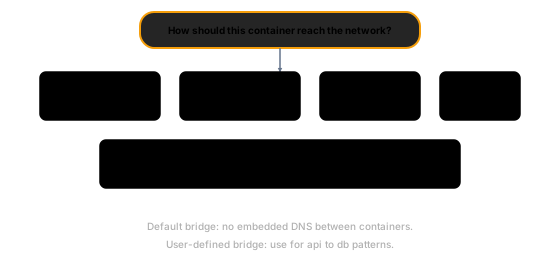
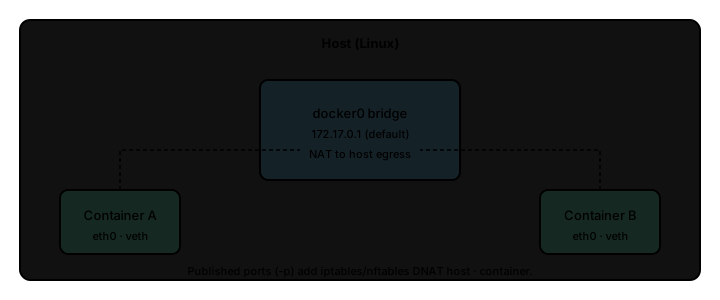
-p 3000:3000 does not move your container onto the host’s network — it tells dockerd to
program a DNAT (destination NAT) rule in the host’s iptables/nftables. A packet to
localhost:3000 is rewritten to the container’s bridge IP and forwarded over docker0:

$ docker run -d --name counter-api -p 3000:3000 counter-api:dev9f2a3c7e1b4d6a8c0e2f1d3b5a7c9e0f2a4b6c8d0e1f3a5b7c9d1e3f5a7b9c0d
$ docker ps --format '{{.Names}}\t{{.Status}}\t{{.Ports}}'counter-api   Up 3 seconds   0.0.0.0:3000->3000/tcp, :::3000->3000/tcp
$ curl -s localhost:3000/health{"status":"ok","count":0}0.0.0.0:3000->3000/tcp line is the published mapping — 0.0.0.0 means any host
interface. Bind to localhost only with -p 127.0.0.1:3000:3000 so it’s not exposed to your LAN.curl hits the host port; netfilter DNATs it into the container. Nothing inside the container
changed — it still just listens on :3000.This is the everyday goal — an API resolving its database as db, no IPs hard-coded. Use a
user-defined bridge (the default bridge has no DNS).
# 1. Isolated network with its own subnet + embedded DNS$ docker network create app-netb1c2d3e4f5a6...
# 2. Start Postgres and the API on that network$ docker run -d --network app-net --name db \    -e POSTGRES_PASSWORD=secret -e POSTGRES_DB=counter postgres:16-alpine$ docker run -d --network app-net --name api -p 3000:3000 \    -e DATABASE_URL=postgres://postgres:secret@db:5432/counter counter-api:dev
# 3. The API resolves "db" by name via Docker's embedded resolver$ docker exec api getent hosts db172.18.0.2        db
# 4. Hit the API by name from a throwaway container on the same network$ docker run --rm --network app-net curlimages/curl -s http://api:3000/health{"status":"ok","count":1}
Why it works: every container on app-net has /etc/resolv.conf pointing at 127.0.0.11,
Docker’s embedded DNS. It answers db and api with their current bridge IPs, so a container
restart (and new IP) never breaks the connection string.
| Feature | Default bridge | User-defined bridge |
|---|---|---|
| DNS between containers | ❌ (use IPs / links) | ✅ container name → IP |
| Isolation | All on same default net | Separate subnet per network |
| Portable to Compose | awkward | ✅ networks: block |
| Mode | Command sketch | When you use this |
|---|---|---|
| bridge (default) | docker run nginx | Normal app containers |
| host | docker run --network host ... | Performance / multicast quirks; Linux-only semantics |
| none | docker run --network none ... | Air-gapped batch jobs |
| container:NS | docker run --network container:peer ... | Share another container’s stack (sidecars, legacy) |
docker network ls # list networks (bridge/host/custom)docker network create app-net # user-defined bridge with DNSdocker network inspect app-net # subnet, gateway, attached containersdocker network connect app-net api # attach a running containerdocker network rm app-net # remove one networkbridge has no name resolution. If ping db fails, you’re almost always on the
default bridge — create a user-defined network instead.bind: address already in use means the host port is taken;
change the left side (-p 3001:3000) or stop the other listener.docker network prune removes unused user-defined
networks only — it won’t (and shouldn’t) touch bridge, host, or none.docker network prune # clean up user-defined networks after experimentsContainers are ephemeral by design — the writable layer on top of an image is tied to the
container’s lifetime. Delete the container (docker rm) and that layer is gone. If your Postgres
container is storing data inside its own writable layer, you lose every row when you recreate it.
You also need a way to inject live source code from your laptop into a container so edits take effect without a rebuild.
Docker solves both by separating the data plane (where bytes live) from the container lifecycle.
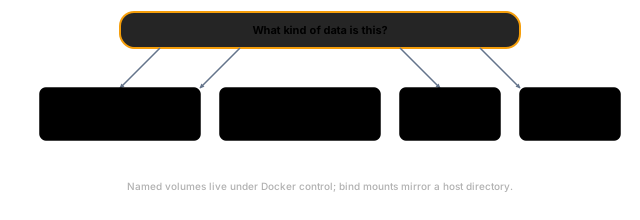

The key insight: a named volume’s backing directory on the host exists independently of any
container. When you docker rm a container, the named volume is untouched. The next container that
mounts the same volume name gets the exact same bytes.
# 1. Create the named volume explicitly (also happens implicitly on first run)$ docker volume create counter-pgdatacounter-pgdata
# 2. Inspect it — see where Docker stores the actual files on the host$ docker volume inspect counter-pgdata[    {        "CreatedAt": "2024-11-14T09:12:03Z",        "Driver": "local",        "Labels": {},        "Mountpoint": "/var/lib/docker/volumes/counter-pgdata/_data",        "Name": "counter-pgdata",        "Options": {},        "Scope": "local"    }]
Mountpoint is where data physically lives. On macOS Docker Desktop this path is inside the Linux
VM, not directly on your Mac filesystem — which is why named volumes are faster on macOS than
bind mounts.
# 3. Start Postgres, mounting the volume at the data directory$ docker run -d \    --name pg-demo \    -e POSTGRES_PASSWORD=secret \    -e POSTGRES_DB=counter \    -v counter-pgdata:/var/lib/postgresql/data \    postgres:16-alpinea3f8c1e2d4b6a9e0c1f2d3b4a5c6e7f8a9b0c1d2e3f4a5b6c7d8e9f0a1b2c3d4
$ docker ps --format '{{.Names}}\t{{.Status}}'pg-demo Up 4 seconds# 4. Write a row (connect via psql inside the container)$ docker exec -it pg-demo psql -U postgres -d counter -c \ "CREATE TABLE hits (id serial PRIMARY KEY, ts timestamptz DEFAULT now()); INSERT INTO hits DEFAULT VALUES;"CREATE TABLEINSERT 0 1
$ docker exec pg-demo psql -U postgres -d counter -c "SELECT * FROM hits;" id | ts----+------------------------------- 1 | 2024-11-14 09:12:41.537429+00(1 row)# 5. Destroy the container — simulating an upgrade, a crash, a redeploy$ docker rm -f pg-demopg-demo
# The volume still exists — no -v flag means the volume was NOT deleted$ docker volume lsDRIVER VOLUME NAMElocal counter-pgdata# 6. Start a brand-new container with the SAME volume name$ docker run -d \ --name pg-demo-v2 \ -e POSTGRES_PASSWORD=secret \ -e POSTGRES_DB=counter \ -v counter-pgdata:/var/lib/postgresql/data \ postgres:16-alpineb7c2d1e3f5a8b9c0d1e2f3a4b5c6d7e8f9a0b1c2d3e4f5a6b7c8d9e0f1a2b3c4
# 7. Query — row survives because the volume, not the container, owns the data$ docker exec pg-demo-v2 psql -U postgres -d counter -c "SELECT * FROM hits;" id | ts----+------------------------------- 1 | 2024-11-14 09:12:41.537429+00(1 row)Why this works: Postgres writes its data files under /var/lib/postgresql/data. Docker maps
that path to counter-pgdata/_data on the host. When the container is removed, only the
writable layer (logs, pid files, ephemeral state) disappears. The named volume’s contents are
unaffected. The new container mounts the same directory and Postgres resumes right where it left
off.
Bind mounts are the standard way to get live-reload during development: your editor saves to the host, the container sees the change instantly through the shared path.
# From the project root — mount source into the container's working directory$ docker run --rm -it \    -p 3000:3000 \    -v "$PWD:/app" \    -w /app \    node:20-bookworm \    npm run dev
> counter-api@1.0.0 dev> nodemon src/index.js
[nodemon] 3.0.2[nodemon] watching path(s): *.*[nodemon] starting `node src/index.js`Server listening on :3000
Edit any file in $PWD/src on the host — nodemon detects the change inside the container and
restarts automatically. No rebuild, no new image.
# In another terminal — confirm the API is live$ curl -s localhost:3000/health{"status":"ok","count":0}| Mechanism | Host path you control? | Typical use |
|---|---|---|
| Bind mount | Yes (-v $PWD:/app) | Live-reload dev, injecting configs, CI artifacts |
| Named volume | No (Docker manages it) | Database files, uploaded blobs, build caches |
| tmpfs | RAM only (no disk) | Sensitive scratch data, reduce disk I/O |
docker volume create counter-pgdata # create a named volumedocker volume ls # list all volumesdocker volume inspect counter-pgdata # show Mountpoint and metadatadocker volume rm counter-pgdata # delete one volume (must be detached)docker volume prune # delete all volumes not used by any containerdocker system df -v # show disk usage: volumes vs images vs build cachedocker volume inspect tip: read the Mountpoint field to find where data physically lives.
On Linux this is /var/lib/docker/volumes/<name>/_data; on macOS it is inside the Docker Desktop
VM and you cannot browse it directly from the Mac filesystem.
docker system df -v tip: see how much each named volume consumes so you know what to clean
before a disk-full situation.
macOS bind-mount performance: Bind mounts on Docker Desktop route through a VM filesystem sync
layer. Mounting a large node_modules directory (tens of thousands of files) can be noticeably
slow. Mitigations:
src/ instead of the whole project root.node_modules and a bind mount for src/ (classic two-volume pattern).Linux UID/GID EACCES errors: If the container process runs as node (uid 1000) but host
files are owned by your account (uid 501 on macOS, typically 1000 on Linux but may differ
in CI), bind-mount writes fail with permission denied.
Common mitigations:
chown -R 1000:1000 ./src on the host or in a CI setup step.Named volume vs writable layer: if you do NOT mount a volume or bind mount, the container
writes data into its own writable layer. That data is gone on docker rm. This is the most common
source of “my database was wiped” surprises.
Running multiple containers together (API + database + cache) manually means re-typing long docker run
commands, hard-coding IPs that change on every restart, and keeping mental state about which network and
volume flags go where. There is no single source of truth to share with teammates or check into git.
Compose solves all three: one declarative file, one command, reproducible every time — and the service keys become DNS names containers can use to reach each other immediately.
Every key in compose.yaml maps to one concept you already know from plain Docker:

compose up fans out into Engine calls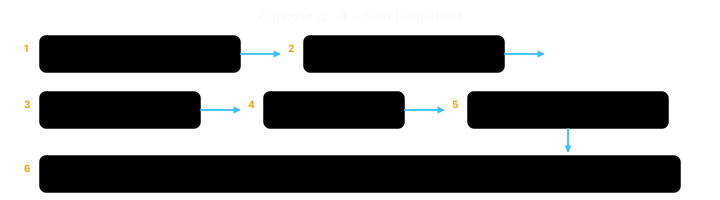
Steps 5–6 in the diagram correspond to depends_on with condition: service_healthy: Compose holds the api start until dockerd reports the db container’s healthcheck as passing. Without that gate the API process often races Postgres and crash-loops.
depends_on gating in detail
The project structure assumes a counter-api/ directory with a Dockerfile and this compose.yaml at its
root. Start from the project root.
$ docker compose up -d --build[+] Building 12.3s (11/11) FINISHED => [api] load build definition from Dockerfile => [api] load .dockerignore => [api] load metadata for docker.io/library/node:20-alpine => [api internal] load build context => [api 1/4] FROM docker.io/library/node:20-alpine => [api 2/4] WORKDIR /app => [api 3/4] COPY package*.json ./ => [api 4/4] RUN npm ci --omit=dev => [api] exporting to image => naming to counter-api:dev
[+] Running 4/4 ✔ Network counter-api_app    Created                    0.1s ✔ Volume "counter-api_pgdata" Created                   0.0s ✔ Container counter-api-db-1   Started                  0.5s ✔ Container counter-api-api-1  Started                  3.8s
What happened in that output:
db started at 0.5 s — the container is running, but Postgres is not yet ready.api started at 3.8 s — Compose polled the db healthcheck (pg_isready) every 5 seconds; the API
container was only created after the healthcheck reported healthy. The 3.3-second gap is that wait.$ docker compose psNAME IMAGE COMMAND SERVICE CREATED STATUS PORTScounter-api-api-1 counter-api:dev "node src/index.js" api 3 minutes ago Up 3 minutes 0.0.0.0:3000->3000/tcpcounter-api-db-1 postgres:16-alpine "docker-entrypoint.s…" db 3 minutes ago Up 3 minutes (healthy) 5432/tcpThe (healthy) badge next to db confirms the healthcheck is passing. api has no healthcheck: block of
its own, so it shows only Up — that is fine for development.
$ docker compose logs -f apicounter-api-api-1 | Server listening on :3000counter-api-api-1 | Connected to Postgres at db:5432counter-api-api-1 | GET /health 200 4msThe second log line (Connected to Postgres) only appears because the healthcheck gate ensured Postgres was
accepting connections before Node even started. Without condition: service_healthy, that line is often
preceded by a series of ECONNREFUSED errors during the Postgres init phase.
$ curl -s localhost:3000/health{"status":"ok","count":0}
$ docker compose exec db psql -U postgres -d counter -c '\dt' List of relations Schema | Name | Type | Owner--------+----------+-------+---------- public | counters | table | postgres(1 row)$ docker compose down[+] Running 3/3 ✔ Container counter-api-api-1 Removed 0.4s ✔ Container counter-api-db-1 Removed 0.5s ✔ Network counter-api_app Removed 0.1sThe named volume counter-api_pgdata is not removed — the database survives the next compose up.
compose.yamlservices: api: build: context: . dockerfile: Dockerfile target: prod image: counter-api:dev ports: - "3000:3000" environment: DATABASE_URL: postgres://postgres:postgres@db:5432/counter depends_on: db: condition: service_healthy networks: - app
db: image: postgres:16-alpine environment: POSTGRES_PASSWORD: postgres POSTGRES_DB: counter volumes: - pgdata:/var/lib/postgresql/data healthcheck: test: ["CMD-SHELL", "pg_isready -U postgres -d counter"] interval: 5s timeout: 3s retries: 10 networks: - app
volumes: pgdata:
networks: app:| Command | What it does |
|---|---|
docker compose up -d | Start all services detached (background) |
docker compose up -d --build | Rebuild images before starting |
docker compose ps | List containers + status + health badge |
docker compose logs -f api | Stream logs for a single service |
docker compose exec api sh | Open a shell in the running api container |
docker compose exec db psql -U postgres -d counter -c '\dt' | Run a one-off psql command |
docker compose pull | Refresh pinned tags from the registry |
docker compose build | Build images without starting containers |
docker compose down | Stop + remove containers + project network |
docker compose down -v | As above and remove named volumes (DB wipe) |
dockerCompose is a thin client over the same Engine API you use with docker run. The mapping is exact:
| Compose concept | Rough docker equivalent |
|---|---|
services.api (with build:) | docker build -t counter-api:dev . then docker run --name api --network app -p 3000:3000 --env ... |
services.db (with volumes:) | docker run --name db --network app -v pgdata:/var/lib/postgresql/data --env ... |
networks.app | docker network create app (user-defined bridge with embedded DNS) |
volumes.pgdata | docker volume create counter-api_pgdata |
depends_on: condition: service_healthy | Poll docker inspect --format '{{.State.Health.Status}}' db until healthy, then start api |
depends_on without condition is not enough. depends_on: db alone only waits for the db
container to start — Postgres keeps initialising for another second or two after that. Always pair it
with condition: service_healthy and a healthcheck: block, or your API will crash-loop on first boot.
Healthcheck retries exhaust silently. If pg_isready fails 10 times (50 s total with interval: 5s),
the container transitions to unhealthy and Compose refuses to start dependent services. Check with
docker compose ps — a (unhealthy) badge is the signal. Then run docker compose logs db to see why
Postgres failed.
Port collisions on the host. If 0.0.0.0:3000 is already in use (another dev server, another Compose
project), compose up fails with bind: address already in use. Change the left side of the port mapping
("3001:3000") or stop the conflicting process.
Stale images after code changes. docker compose up -d does not rebuild — it reuses the last built
layer cache. Always pass --build after touching the Dockerfile or any files in the build context, or
your running container will have old code.
Project name scoping. Compose prefixes every resource with the project name (default: directory name).
Two Compose projects in different directories can define the same service names without colliding because
the containers are named project1-api-1 and project2-api-1 respectively. If you rename the directory,
compose down in the old location won’t find the old containers — use
docker compose -p old-name down instead.
docker scout quickview counter-api:devIf Docker Scout is enabled in your org, this gives a fast CVE summary before you tag 1.0.0 for production.
| Term | Plain meaning |
|---|---|
| OCI | Open Container Initiative — standard image formats and the contract runc uses to start a process. |
| Image | Read-only template (layers + config) used to create containers. |
| Container | A created or running instance with its own writable thin layer on top of the image. |
Docker daemon (dockerd) | Background service that owns containers, images, networks, and volumes on this machine. |
| containerd | Runtime Docker delegates to for container lifecycle and image content. |
| runc | OCI low-level runtime: namespaces, cgroups, and exec of your PID 1. |
Further reading: Docker Docs, containerd architecture, Open Containers Initiative.